File Management (Edexcel IGCSE Ict)
File formats
What is a file format?
-
A file format is a way of **saving data created in an application **so that it can be opened again later in the same application
-
Different applications** use different file formats**, so it is good practice to save work using a **compatible **file format
-
There are occasions when you may wish to change** to a different file format**, for example you may have to save work in an older format for older software versions to be able to open it
-
Software is often backward compatible, which means newer versions will open older file formats
-
Older software cannot open newer file formats
-
After editing your work in one application you may want to export in to a different format, for example:
- Creating a poster in a desktop publishing application and then once complete, exporting as a generic file format such as PDF
- PDFs can be opened on most devices, even without the application it was created in
Example application file formats
| Application type | Application | File format |
|---|---|---|
| Word processor | Microsoft Word | .docx |
| Spreadsheet | Microsoft Excel | .xlsx |
| Database | Microsoft Access | .accdb |
| Presentation | Microsoft PowerPoint | .pptx |
| Image editing | GIMP | .xcf |
| Web authoring | Serif WebPlus | .wpp |
File & folder structures
Spec point —
6.7.3
What is a file & folder structure?
- A file & folder structure is a way of **organising digital information **on a computer
- Files are** individual** documents, images, video, or other data that is stored on a computer
- Folders are digital containers for files
- Folders can be nested inside other folders to create a hierarchical structure
- The purpose of a file & folder structure is find information quickly
Saving work
- It is important to save work regularly, in case of a loss of power or the application crashes
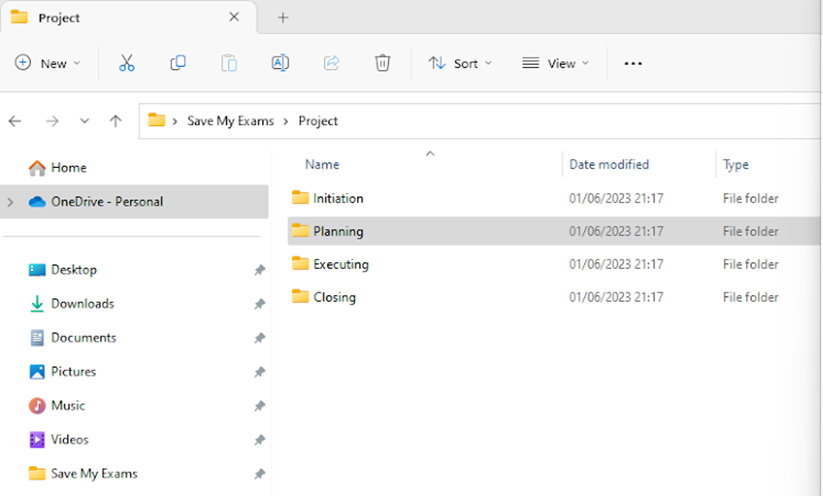
- The below screenshot shows a project structure broken into 4 different sections, Initiation, Planning, Executing and Closing
- Within each folder, files are saved according to the which part of the project they are relevant to
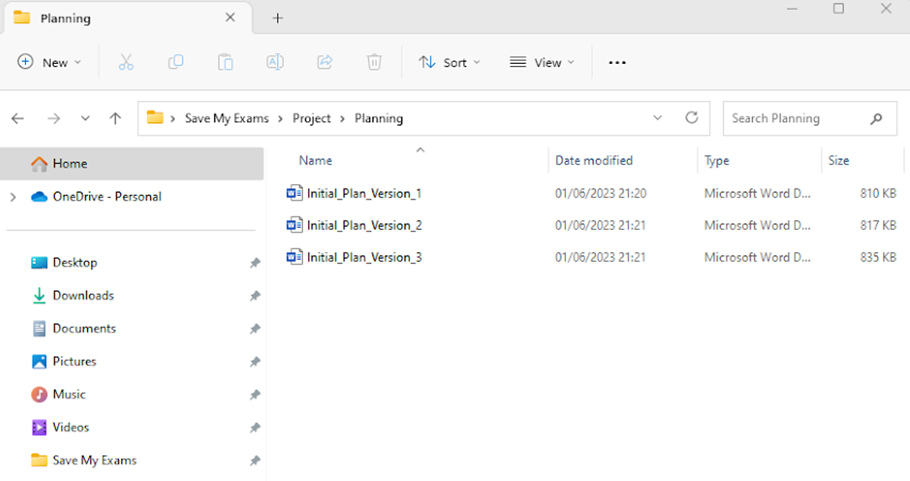
- Files are saved inside folders with version numbers allowing the user to go back and review previous versions
- This is known as version control
Naming files
- Meaningful file names should give a clue as to what the document contains
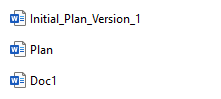
- 'Doc1’ does not give any idea about the contents of the file and is not a meaningful file name
- ‘Plan’ is a partially meaningful name but could be any plan or any version of the plan
- ‘Initial_Plan_Version_1' is a meaningful name as it determines that it is an initial plan and is the first version
Locating stored files
-
Secondary storage contains files and folders
-
Within a folder, there may be files or other folders which are known as subfolders
-
There are multiple ways to locate files
-
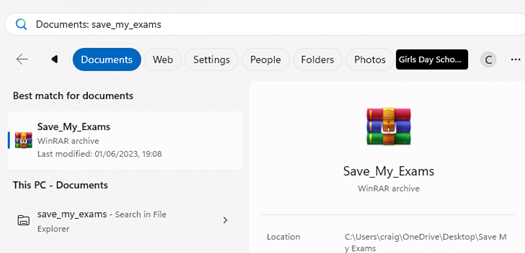
Using Windows search
- Click on the Windows Icon at the bottom of the screen and type the file that is required and click on the ‘documents’ button
-
Was this revision note helpful?
Build on this topic