Image Types (Edexcel IGCSE Ict)
Exam board Pearson Edexcel · IGCSEUpdated 2024-06-26
Bitmaps & vectors
Spec point —
6.6.1
- Computers represent all data in binary, including images that are seen on a screen, TV or other output device
- Images can be stored in binary as Bitmap or Vector
What is a bitmap?
- A bitmap image is made up of squares called pixels
- A pixel is the smallest element of a bitmap image
- Each pixel is stored as a binary code
- Binary codes are unique to the colour in each pixel
- A typical example of a bitmap image is a photograph
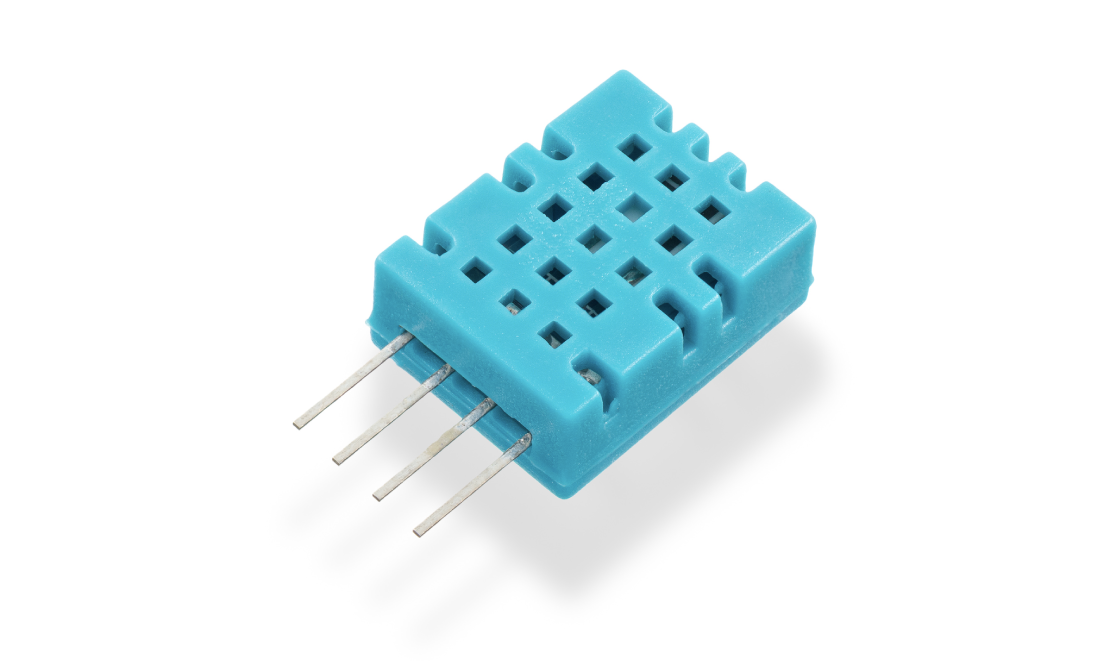
- The more colours and more detail in the image, the higher the quality of the image and the more binary that needs to be stored
What is a vector?
-
A vector image is created from mathematical equations and points
-
Only the mathematics used to create the image are stored
-
For example, to create a circle the data stored would be:
- Centre point (x, y coordinates)
- Radius
-
Typical examples of vector images are logos and clipart
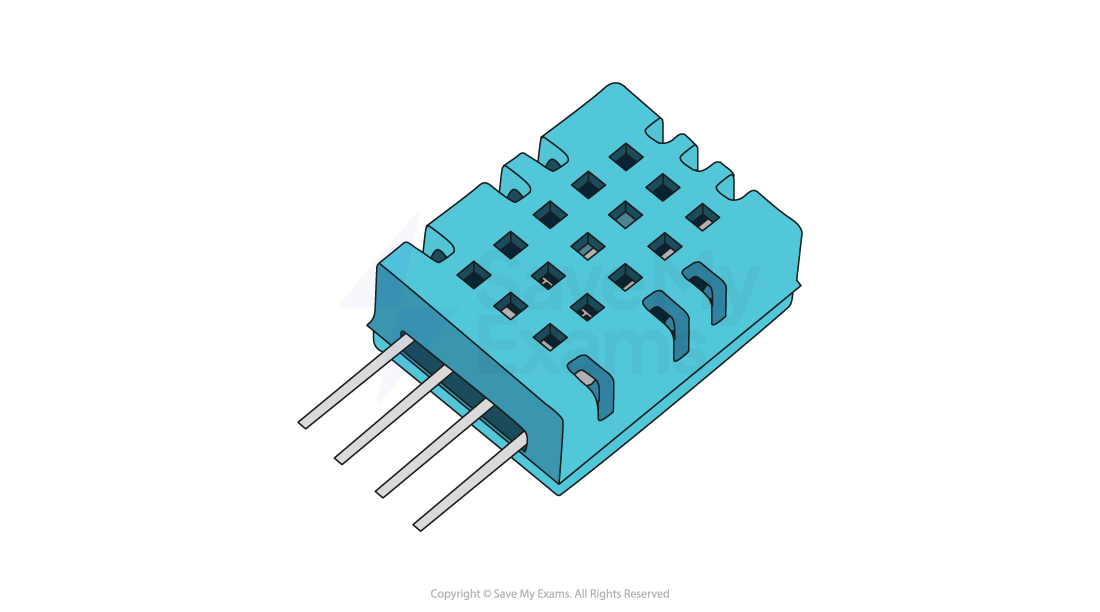
- Vector images are infinitely scalable
- Ideal for situations where the same image will be made bigger and smaller and a loss of quality is unacceptable. For example, the same logo used on both a pencil and a billboard
Editing images
Spec point —
6.6.3
What is image editing?
- Image editing is the process of modifying and enhancing digital photographs, illustrations or any other visual media
Placing an image with precision
-
This refers to positioning an image accurately within a document or other media
- You can usually do this by selecting the image and dragging it to the desired location
- Some software allows for more precision through the use of coordinates or alignment tools
Resizing an image
-
This means changing the dimensions of an image
- You can often do this by selecting the image and dragging its corners or edges
- Maintaining the aspect ratio means the image's width and height change at the same rate, preventing distortion
- Adjusting the aspect ratio can change the shape and proportions of the image
Cropping an image
-
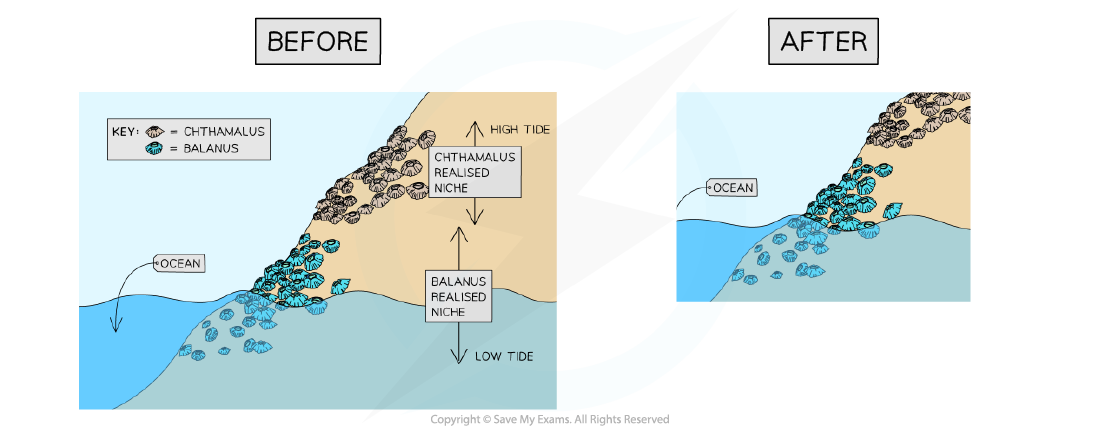
This involves cutting out and discarding parts of an image
- Cropping tools usually allow you to select a portion of the image to keep and discard the rest
Rotating an image
-
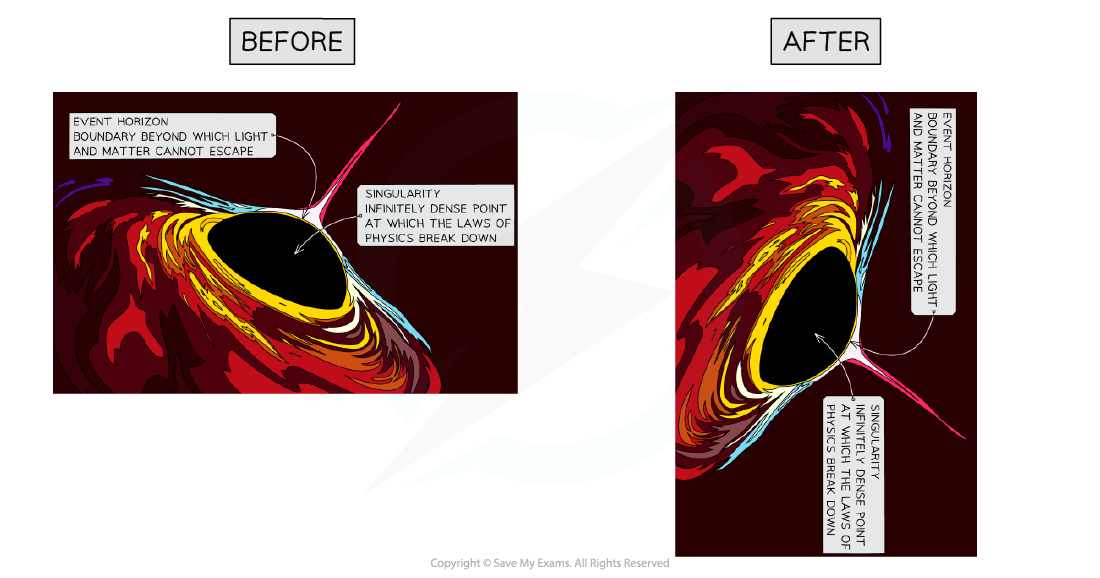
This means turning the image around a central point
- Most software allows rotation to any angle, and common rotations such as 90 degrees or 180 degrees are often provided as options
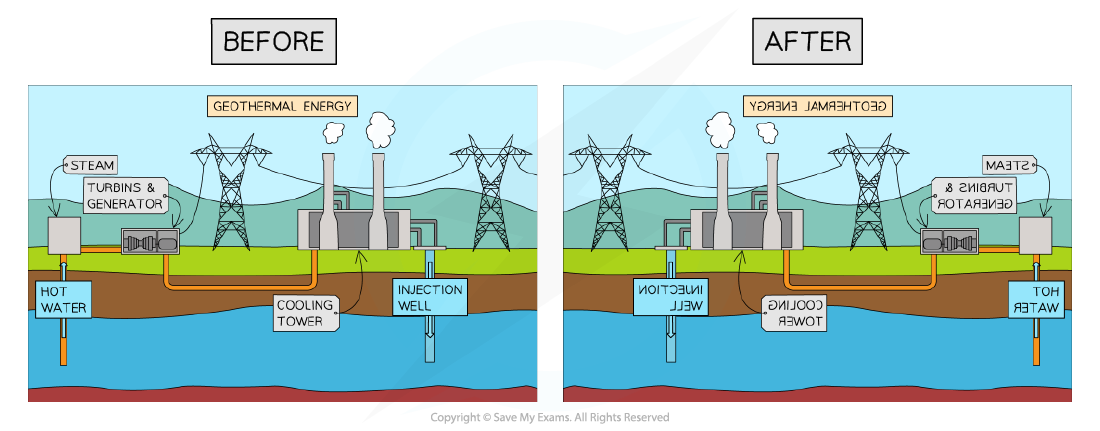
Reflecting (flipping) an image
-
This means creating a mirror image of the original
- An image can be flipped horizontally (left to right) or vertically (top to bottom)
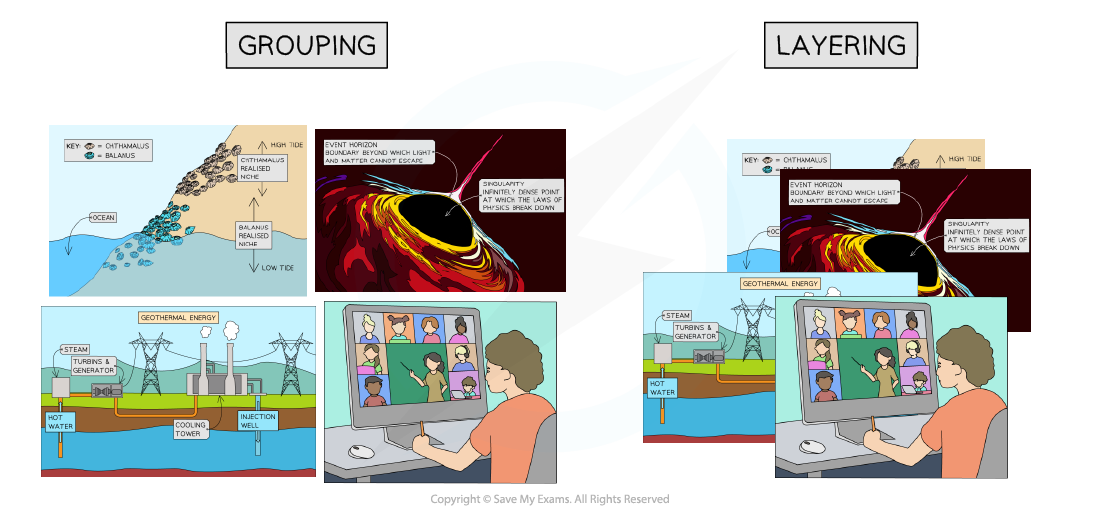
Grouping and layering images
-
These techniques help to organise multiple images
- Grouping combines images so they can be moved or transformed as a single unit
- Layering involves placing images on top of each other
- You can change the order of layered images, moving them to the front or back
Was this revision note helpful?
Build on this topic