Formulae & Functions (Cambridge International IGCSE ICT)
Formulae
What is a formula?
-
A formula is a statement that performs simple calculations in a spreadsheet
-
Formulas start with a = sign
-
A formula can perform calculations using:
- Numbers directly (e.g. =5*2)
- Referenced data held in cells (e.g. =A1*B2)
-
Changing data in a cell that is being referenced in a formula will cause the formula to automatically recalculate based on the new value
-
This is a core concept of spreadsheet modelling
Adding simple formulas to a spreadsheet
Arithmetic operators
- Formulas will make use of basis arithmetic operators
| Symbol | Operation |
|---|---|
| + | Addition |
| - | Subtraction |
| * | Multiplication |
| / | Division |
| ^ | Indices (power of) |
Functions
What is a function?
- A function is a pre-defined formula that can be used to carry out more complex calculations
- Functions are built into spreadsheet software
- Functions can help to simplify complex calculations
- Each function has a specific name that tells the software what calculation is being carried out

Adding functions to a spreadsheet
| Function | Operation |
|---|---|
| SUM | Adds all the numbers in a range of cells =SUM(A1:A10) |
| AVERAGE | Calculates the average of a range of cells =AVERAGE(A1:A10) |
| MAX and MIN | Finds the largest and smallest numbers in a range respectively =MAX(A1:A10) =MIN(A1:A10) |
| INT | Rounds a number down to the nearest integer =INT(A1) |
| ROUND | Rounds a number to a specified number of digits **=ROUND(A1,2) **- round to 2 decimal places |
| COUNT | Counts the number of cells in a range that contain numbers =COUNT(A1:A10) |
| COUNTA | Counts the number of cells in a range that contain numbers and/or labels =COUNTA(A1:A10) |
| IF | Returns one value if a condition is true and another if it's false =IF(condition, true, false) =IF(A1 ="SME",100,B7*3) |
| HLOOKUP | Performs a horizontal look up of data =HLOOKUP('Bananas', A2:D4, 3) |
| VLOOKUP | Performs a vertical look up of data =VLOOKUP(100, A2:D4, 2, TRUE) |
| XLOOKUP | Performs either a horizontal or vertical look up of data =XLOOKUP('Oranges', A1:A4, Sales Q3, "Not found") |
Average, Max, Min & Int in a spreadsheet
Using external data sources within functions
- Spreadsheets allow you to use external data sources within functions
- This could be data from another worksheet, workbook, or even a database
Using nested functions
-
Nesting is using a function within another function
-
For example:
-
=IF(A1>B1, MAX(A1:B1), MIN(A1:B1))
- This checks if A1 is greater than B1, and if true, it returns the max value, else it returns the min value
-
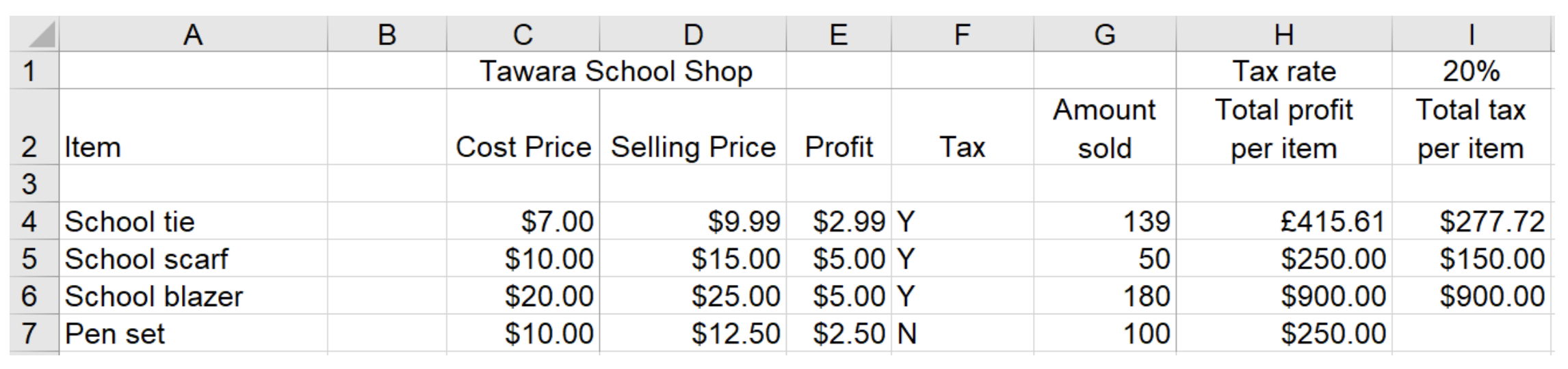
Worked Example awara school has a shop that sells items needed by pupils in school. Part of a spreadsheet with details of the items is shown.
Tax is paid on certain items sold in the shop. The tax rate that has to be paid is 20% of the selling price. If tax is to be paid on an item, then ‘Y’ is placed underneath the Tax heading.
The formula in I4 is: IF(F4=''Y'',($I$1D4G4),'''')
Explain, in detail, what the formula does.
[5]
Answer
Five of:
Final answer: If Tax is payable then//If F4 is equal to "Y" then [1] If true the tax is paid [1] Multiply the rate of tax/I1 [1] By the selling price/D4 [1] By the amount sold/G4 [1] If Tax is not payable//If F4 <>"Y"//Else//Otherwise [1] Then display a blank [1] The tax is not paid [1]
Was this revision note helpful?
Build on this topic